Abuse reports
Build a report about one IP or the busiest IPs of a network, find the abuse contact, and copy or download the result.
An abuse report collects what a network's abuse desk asks for about traffic from its addresses: request counts, the busiest hour or day, the top paths and user agents, the newest log lines, and what CrowdSec knows. GeoMetrikks builds it from the raw access logs for the selected time range and shows a preview you can copy or download. It sends nothing on its own. You mail the report yourself.
This report goes privately to the network's abuse desk, found over RDAP. Reporting to AbuseIPDB is a separate action in the IP actions menu. GeoMetrikks sends a short report to AbuseIPDB, which publishes it on the IP's page. Both start from the same redacted evidence.
Where to start one
- One IP. Open the IP inspector and use the Abuse report button in its footer.
- A network. Use the abuse report button on a row of Top ASNs on Analytics, or on the ASNs tab of Top locations on Geo Logs. The report covers the busiest IPs of that AS.
A report opened from an IP whose AS is known has a Report on switch: This IP, or All of AS followed by its number.
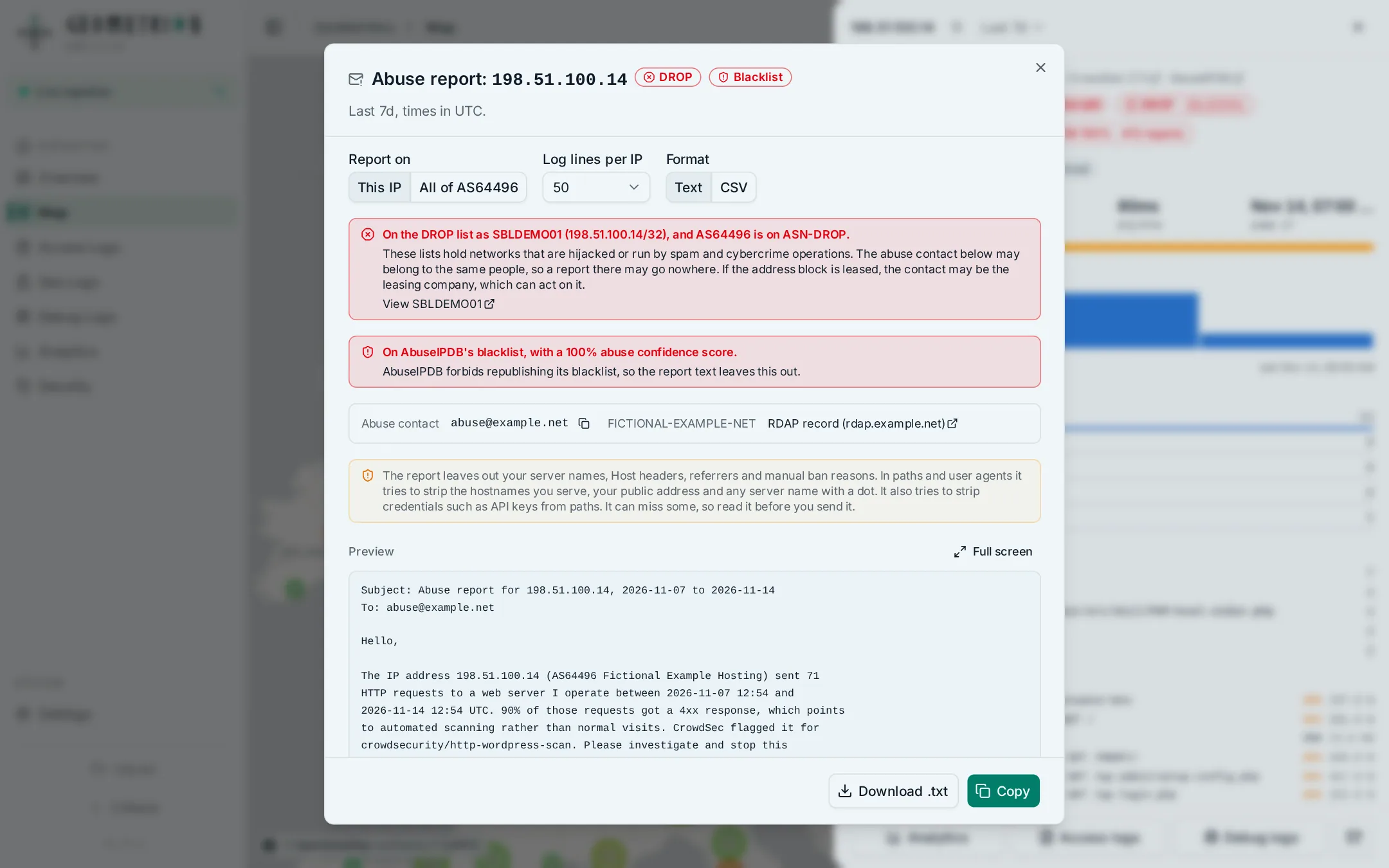
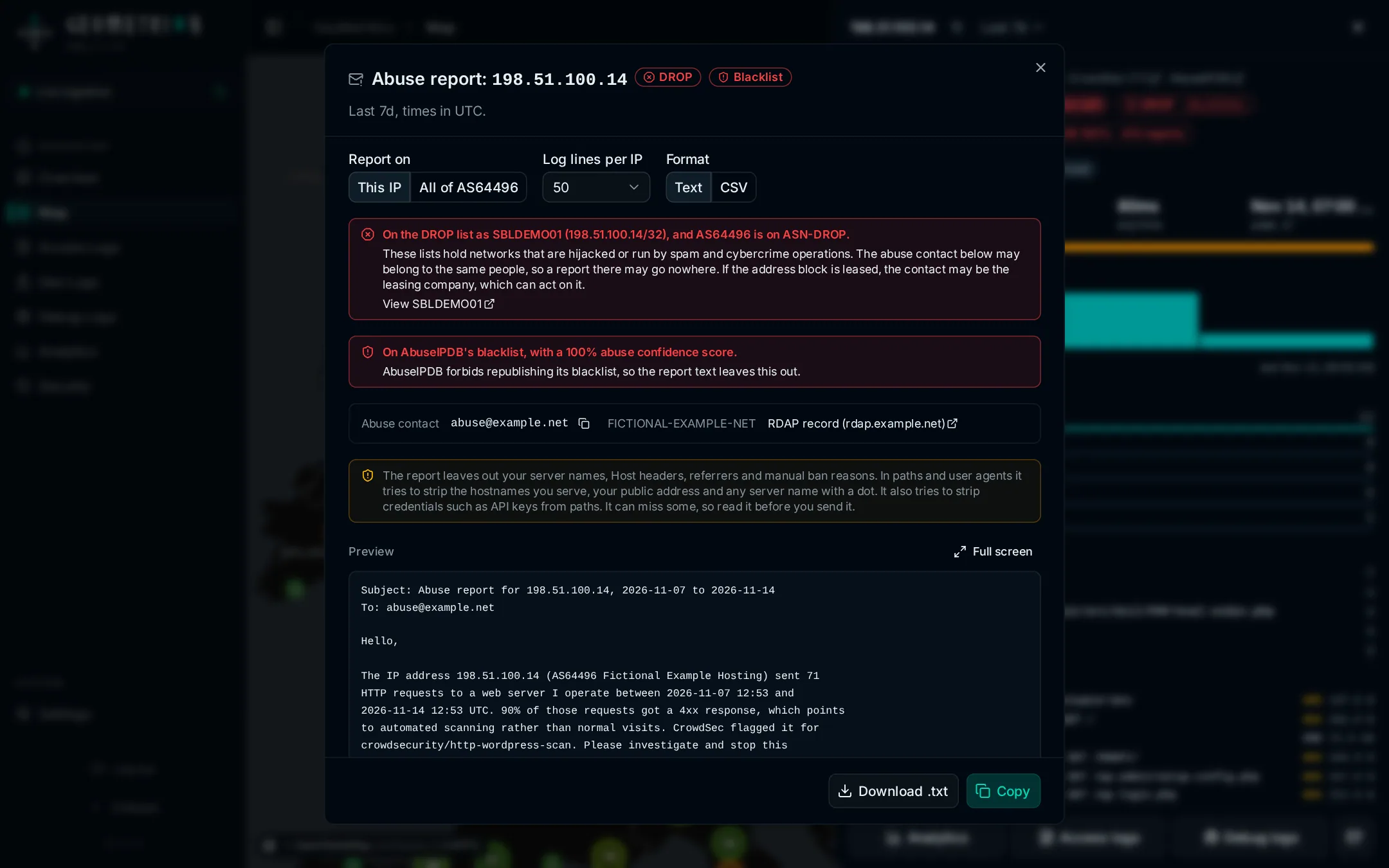
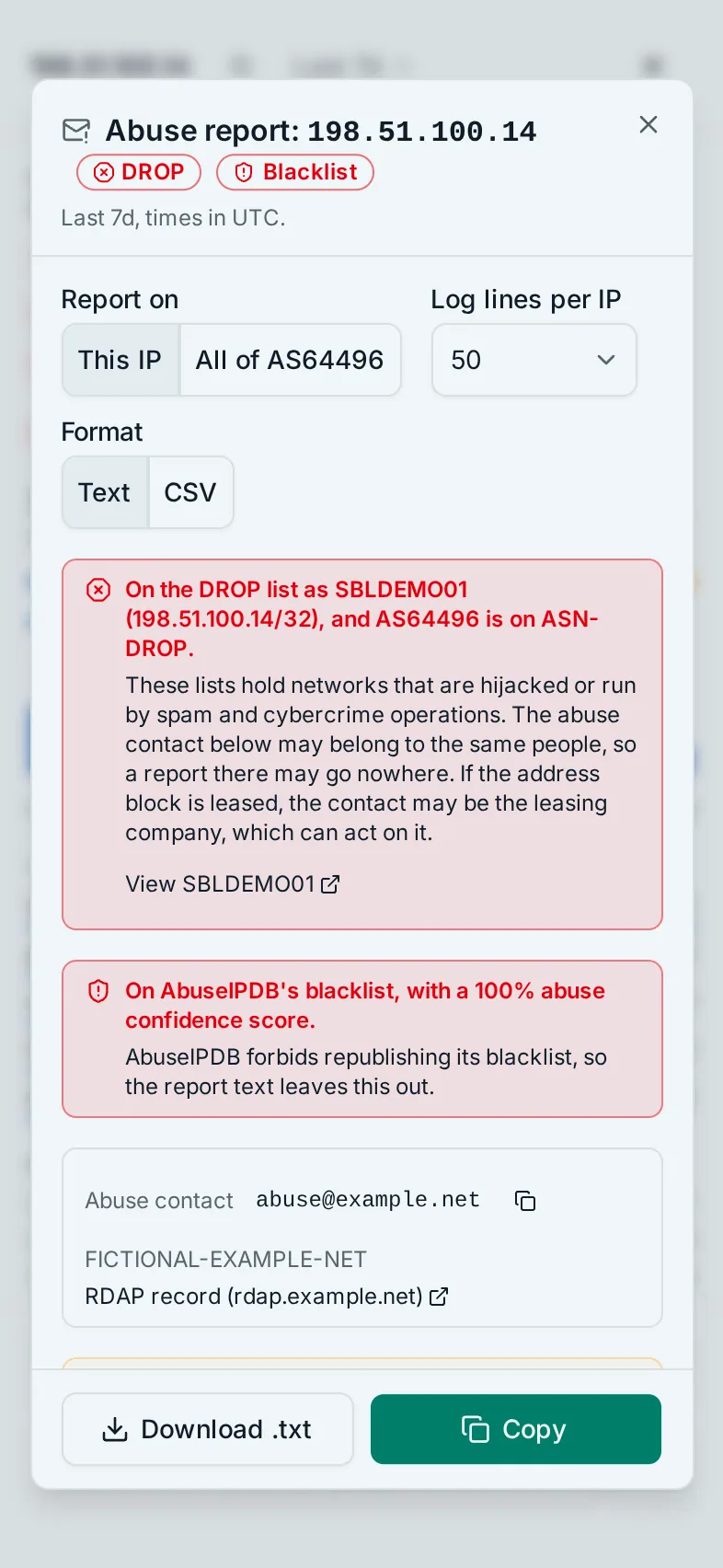
Choices in the dialog
- Addresses, for an AS report only: the busiest 10, 25, 50 or 100 addresses, default 25.
- Log lines per IP: 10, 20, 50, 100 or 200 of each address's newest lines, so up to 200 per address, default 50 for one IP and 20 for an AS. Switching Report on puts back the default for the new choice.
- Format: Text, a ready-to-send message with a subject line, or CSV for a spreadsheet or a ticket system.
Download saves the report as a .txt or .csv file named after the address or AS and the end date. Copy puts it on the clipboard; if the browser blocks that, download it instead. Full screen gives the preview the whole window, and Escape leaves it.
The report covers the time range selected in the app, with every time in UTC. Raw access logs are kept for ANALYTICS_RAW_RETENTION_DAYS, 180 by default, so a report can't reach further back than that.
The abuse contact
The contact lookup runs only when you click Find abuse contact. GeoMetrikks then asks the regional registry over RDAP, following redirects to a national registry where there is one. Only the address or AS number leaves your server. The answer shows the abuse email addresses, each with a copy button, the holder and its address ranges, and a link to the RDAP record. Some records list no abuse email; the dialog says so.
Once the contact is known, the text report starts with its Subject line, then a To line for those addresses, and names the registry record. The CSV format carries the evidence only.
When the address or AS is on a Spamhaus DROP list, the dialog warns that the network may be run by the same people the report is about, so a report to its contact may go nowhere. It links the SBL records and, with CrowdSec write access, offers to ban the DROP network.
When the AbuseIPDB blacklist is on, the dialog also says when the address is on it, or how many of the addresses an AS report lists are. The report text and CSV leave that out.
What the report leaves out
The redaction can miss things. Read the whole report before you send it, and once you have copied or downloaded it, edit out anything that points back to you.
The report goes to a third party, so it leaves out your server names, Host headers, referrers and manual ban reasons. In paths and user agents it tries to strip the hostnames you serve, your public address and any server name with a dot. In paths it also strips credentials from the query string, such as API keys. User agents get only the name scrubbing. A user:password@ in front of a scrubbed name goes with it, but any other credential in a user agent, such as a token in a query string, stays. The dialog counts the places it redacted.
Abuse report redaction lists every rule.