IP inspector
Everything GeoMetrikks knows about one IP address for the selected range, and the IP actions menu that opens it.
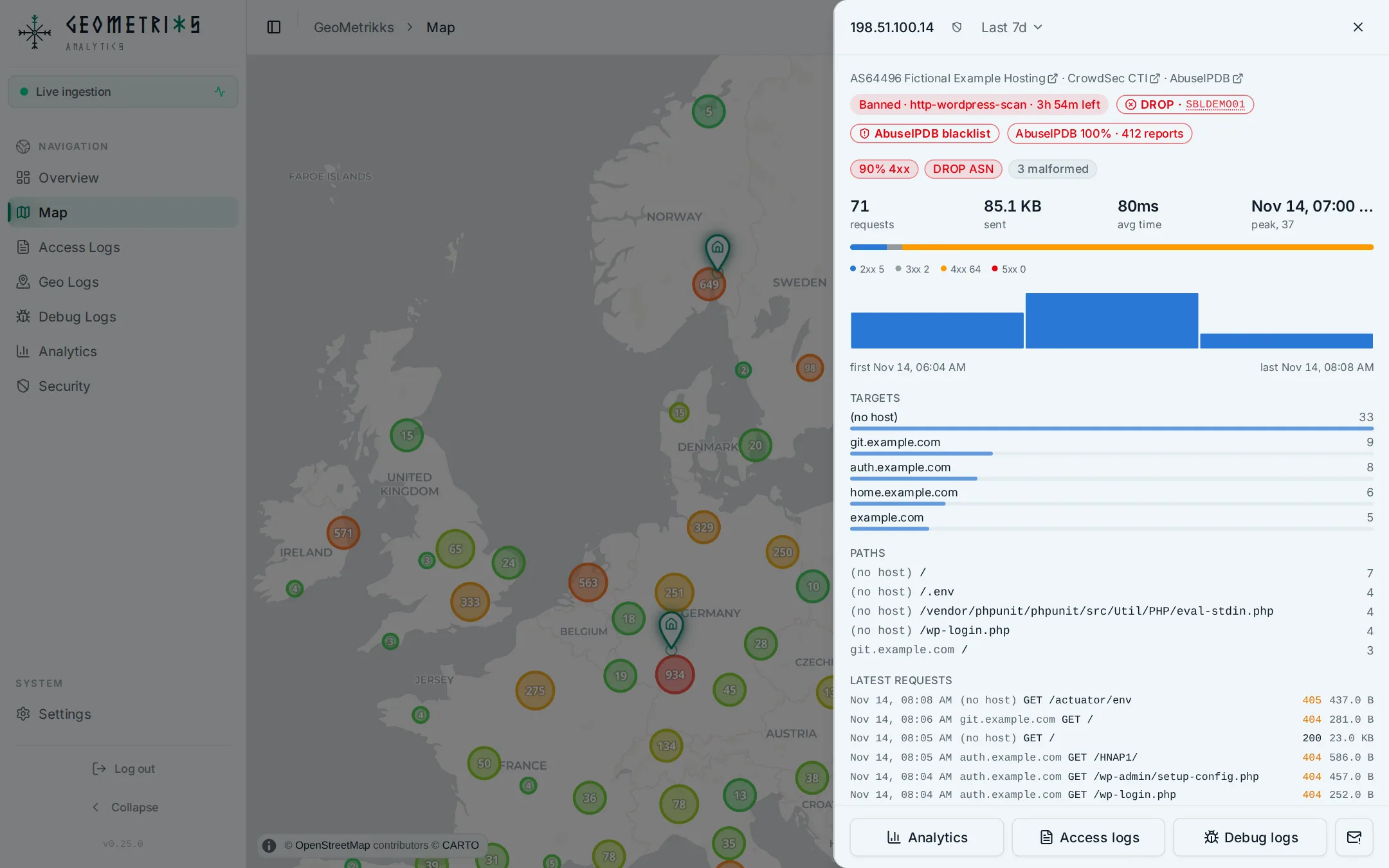
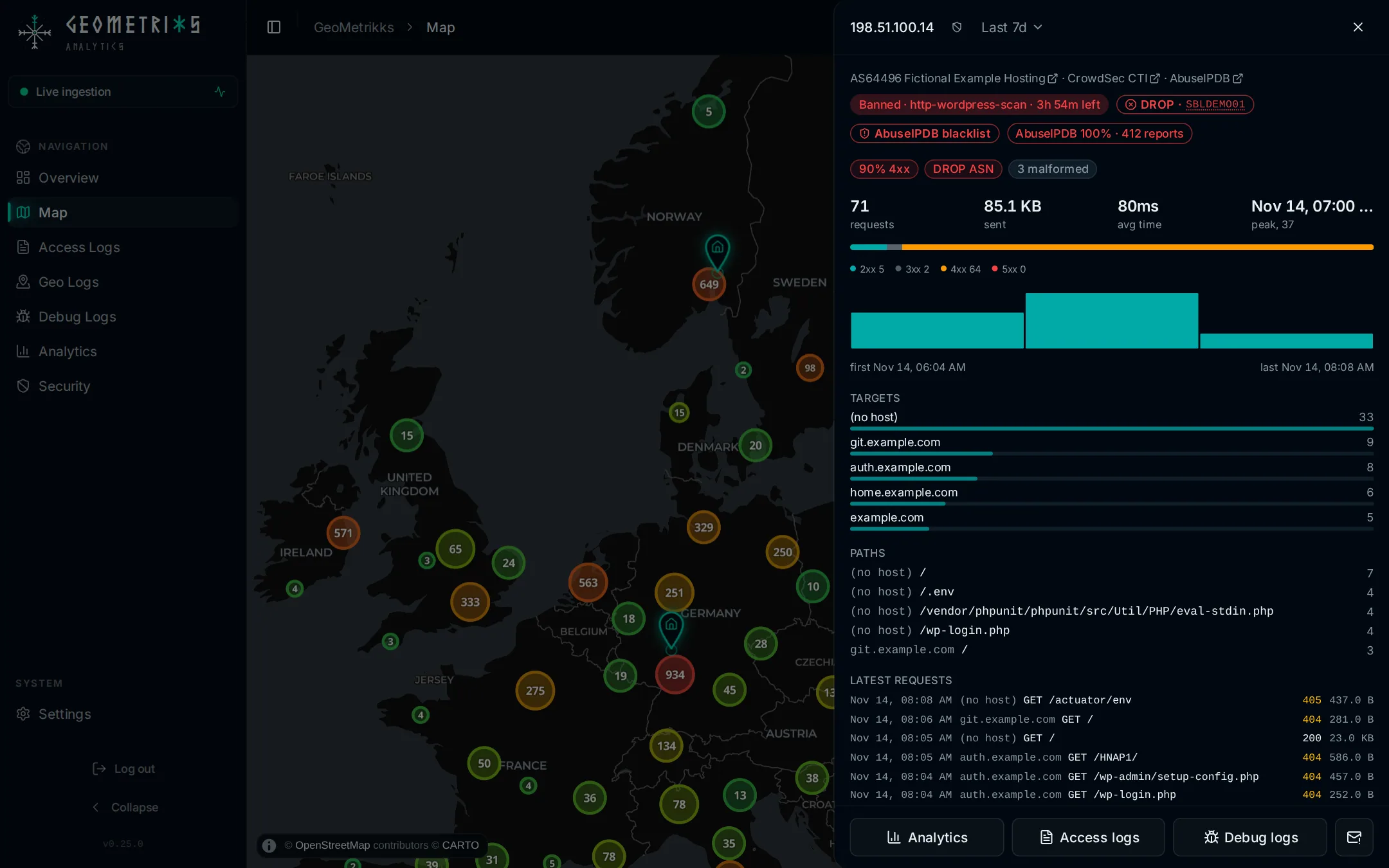
The IP inspector is a side sheet about one address: how much it sent, how the server answered, what it asked for, where it came from, and what CrowdSec, Spamhaus and AbuseIPDB say about it. It covers the selected time range, and the range picker next to the address changes it without closing the sheet.
Opening it
- From a table, open the IP actions menu after the address and choose Inspect IP. Access Logs, Geo Logs, Debug Logs, Analytics and the Security tables all have the menu.
- On the map, use the inspect button next to an IP in a location's details, in a banned IP's details, or in the Top IPs list of the map controls.
- From the inspector itself, the Analytics and Access logs buttons at the bottom open those pages filtered to the address. On a screen wide enough to show the page beside the sheet, the inspector stays open there.
What it shows
The header names the address's city and country, its AS number and organization with a link to bgp.he.net, and, when CrowdSec is set up, a link to the address on CrowdSec CTI. A link to the address's page on AbuseIPDB is always there, and works without an AbuseIPDB key. Under it, a badge shows the active CrowdSec decision with its scenario and time left, and a DROP badge shows the Spamhaus listing with a link to its SBL record. With an AbuseIPDB key, a badge shows a public address's AbuseIPDB score. With the AbuseIPDB blacklist on, a mark shows an address on the blacklist. The score lookup spends one of your daily AbuseIPDB checks, and an IP checked in the last 15 minutes usually costs nothing. AbuseIPDB covers both. With CrowdSec write access, the ban or unban button sits next to the address.
Below that come:
- Signals, the chips described in the next section.
- Stats: requests, bytes sent, average response time, the split by status class, and a bar chart of requests over the range. Click a bar to zoom the time range to that hour or day; Back to returns to the range you had. For a banned address the chart marks the bars that came after the ban.
- Targets, the hosts the address hit, when the log records a host.
- Paths and User agents, its busiest requests and clients.
- Also seen from, every other location the address resolved to, each with a Fly to button that opens the map on that location.
- Latest requests, its 10 newest requests in the range with time, host, method, path, status and size.
The footer has Analytics, Access logs, Debug logs when the address sent malformed requests, and the button for an abuse report.
Signals
Each chip flags a pattern worth a second look. Hover a chip for its explanation. None of them bans anything.
| Chip | When it appears | Color |
|---|---|---|
N% 4xx | 50% or more of the address's requests got a 4xx response, counted only from 20 requests up | Amber, red from 70% |
| DROP ASN | The address belongs to an AS on Spamhaus's ASN-DROP list | Red |
| Hosting ASN | The address belongs to a network on the bundled hosting, VPN and datacenter list | Amber |
Still seen Nh after ban | Requests kept arriving after the CrowdSec ban started. The chip adds how many requests came after it | Red |
N paths | The address asked for 50 or more distinct paths in the range | Amber |
N malformed | The parser flagged one or more of its lines as malformed | Gray |
| Burst | At least half of its requests landed in one hour or day bucket, counted only from 100 requests up | Amber |
Still seen after ban means one of two things. Either no bouncer enforces the decision, or the traffic reaches your proxy on a path the bouncer doesn't cover. The count is per bucket, so a ban in the middle of an hour can undercount by up to one bucket.
The IP actions menu
Every IP in a table has a copy button and an IP actions button after it. The menu offers:
- Copy IP and Inspect IP.
- Fly to on the map, which opens the map on the address's location.
- Filter by IP, host, server, country or ASN, taken from the row, and Exclude for the values the page can exclude. A value already in a filter gets Stop filtering or Stop excluding instead. Which values appear depends on the page's filters.
- With CrowdSec write access, Ban IP with a choice of 1 hour, 4 hours, 24 hours, 7 days or Forever, or Unban IP for a banned address. A ban or unban waits 5 seconds before it reaches CrowdSec, behind a toast with Undo.
- For an address on a DROP list, a ban or unban of the whole DROP network.
- With AbuseIPDB reporting on, Report to AbuseIPDB…, which opens a report prefilled from what GeoMetrikks saw. The item says when the address was last reported, and stays disabled for 15 minutes after a report and on an address that isn't public. See Report an IP.
The menu's header shows the address with its CrowdSec decision, DROP listing and AbuseIPDB blacklist mark. In the footer of a record sheet, such as an access log row's details, the menu leaves out Copy, Inspect and Fly to, since the sheet has its own buttons for them.
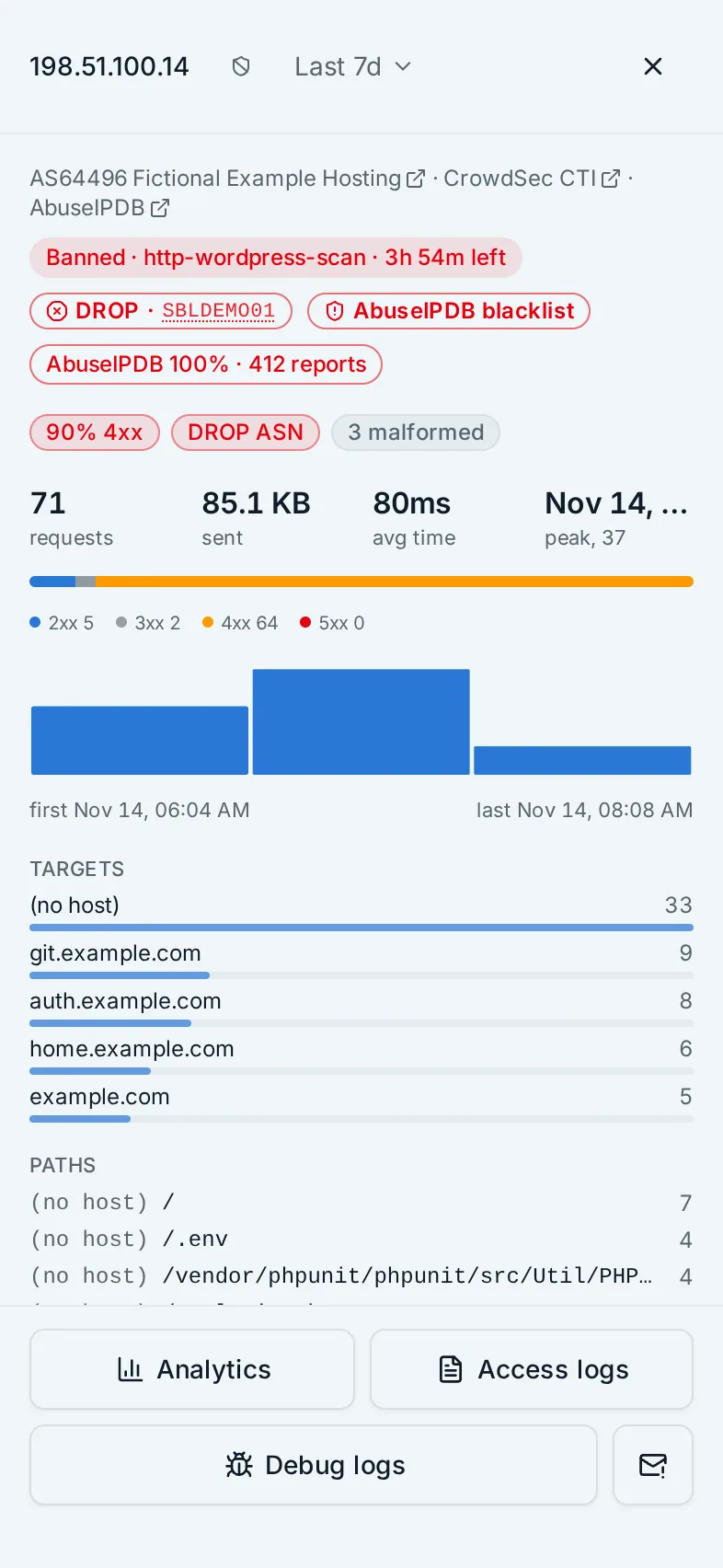
On a phone
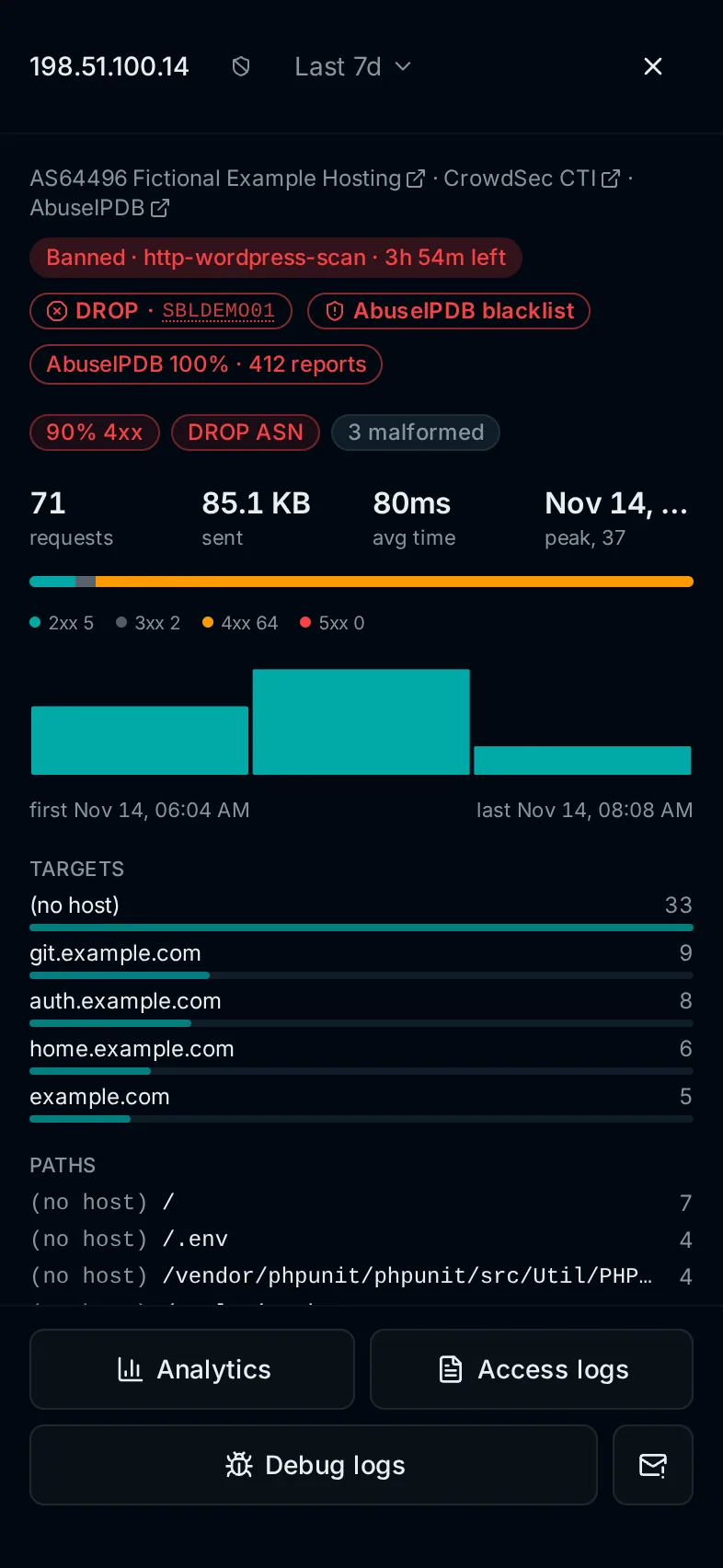
The inspector opens full screen. The IP actions menu opens as a drawer from the bottom, or from the right on a phone held sideways, and Ban opens a second drawer with the durations, the same one the map panels use.