Keyboard shortcuts
Navigate pages, focus filters and work through log tables from the keyboard on desktop.
Keyboard shortcuts need a keyboard and apply on desktop. Phones show no change.
Anywhere
| Keys | Action |
|---|---|
Ctrl+K / Cmd+K | Opens search and commands |
/ | Focuses the page's main filter field (Access Logs search, Debug Logs search, the Security search fields). On Geo Logs and Analytics it opens the Filter menu. |
T | Opens the time range menu |
R | Refreshes now |
L | Opens Access Logs on its Live tail tab |
B | Opens the "Ban an IP or range" dialog when CrowdSec has write access (CROWDSEC_MACHINE_ID and CROWDSEC_MACHINE_PASSWORD); without it, B does nothing |
Ctrl+B / Cmd+B | Collapses or expands the sidebar |
? | Opens the keyboard shortcuts cheat sheet |
Go to
Press G, then a second key within about 1.5 seconds.
| Keys | Page |
|---|---|
G then O | Overview |
G then M | Map |
G then A | Access Logs |
G then G | Geo Logs |
G then D | Debug Logs |
G then N | Analytics |
G then S | Security |
G then , | Settings |
Tables
These work on Access Logs History, Geo Logs and Debug Logs.
| Keys | Action |
|---|---|
J | Next row (the first J focuses the first row in view) |
K | Previous row |
Enter | Opens the focused row's record |
I | Opens the IP inspector for the row's IP |
C | Copies the row's IP |
F | Filters the page by the cell under the mouse pointer; press F again on a cell already filtered to remove that filter |
Right / Left | Next and previous page while a row has focus |
While the IP inspector is docked with an IP opened from a row, J and K step the inspector to the next or previous row with another IP, loading the next or previous page at the edges. While a record is docked beside the page, J and K step the record to the next or previous row without skipping rows with the same IP, loading the next or previous page at the edges. On the Security page's Alert history they step through every alert. I and C act on the focused row, or the row under the mouse pointer when no row has focus. F works on cells whose column the page can filter on: IP, host, server, country and ASN on Access Logs; IP, country and ASN on Geo Logs; IP and country on Debug Logs. In combined columns, F uses the field the column sorts by, so Client filters by IP, while Request (sorts by path) and Location (sorts by city) are ignored because there is no filter for path or city there.
Search and commands
Press Ctrl+K (Cmd+K on a Mac) from any page to open the search-and-commands palette, including while you type in a field. Press the same keys again or Esc to close it. It searches pages, actions, IP addresses, countries, cities, hosts, server names and networks. On desktop, the search field in the top bar ("Search IPs, hosts, pages…", showing Ctrl K, or ⌘ K on a Mac) opens the same palette, and shrinks to a search icon button on narrow windows. On a phone, a search button in the header opens it as a full-screen sheet.
When opened empty, the palette lists:
- Recently inspected shows the last 5 addresses opened in the IP inspector, kept in this browser only, each with "banned" or its country and its request count.
- Go to lists every page in the sidebar with its
Gshortcut. - Actions lists "Change the time range…" with the current range on pages that use the time range, "Ban an IP or range…" when CrowdSec has write access (
CROWDSEC_MACHINE_IDandCROWDSEC_MACHINE_PASSWORD), and "Start the live tail".
Type to filter the list, move with the arrow keys and press Enter to run the selected row. The footer has a button that opens the shortcuts cheat sheet.
IP search
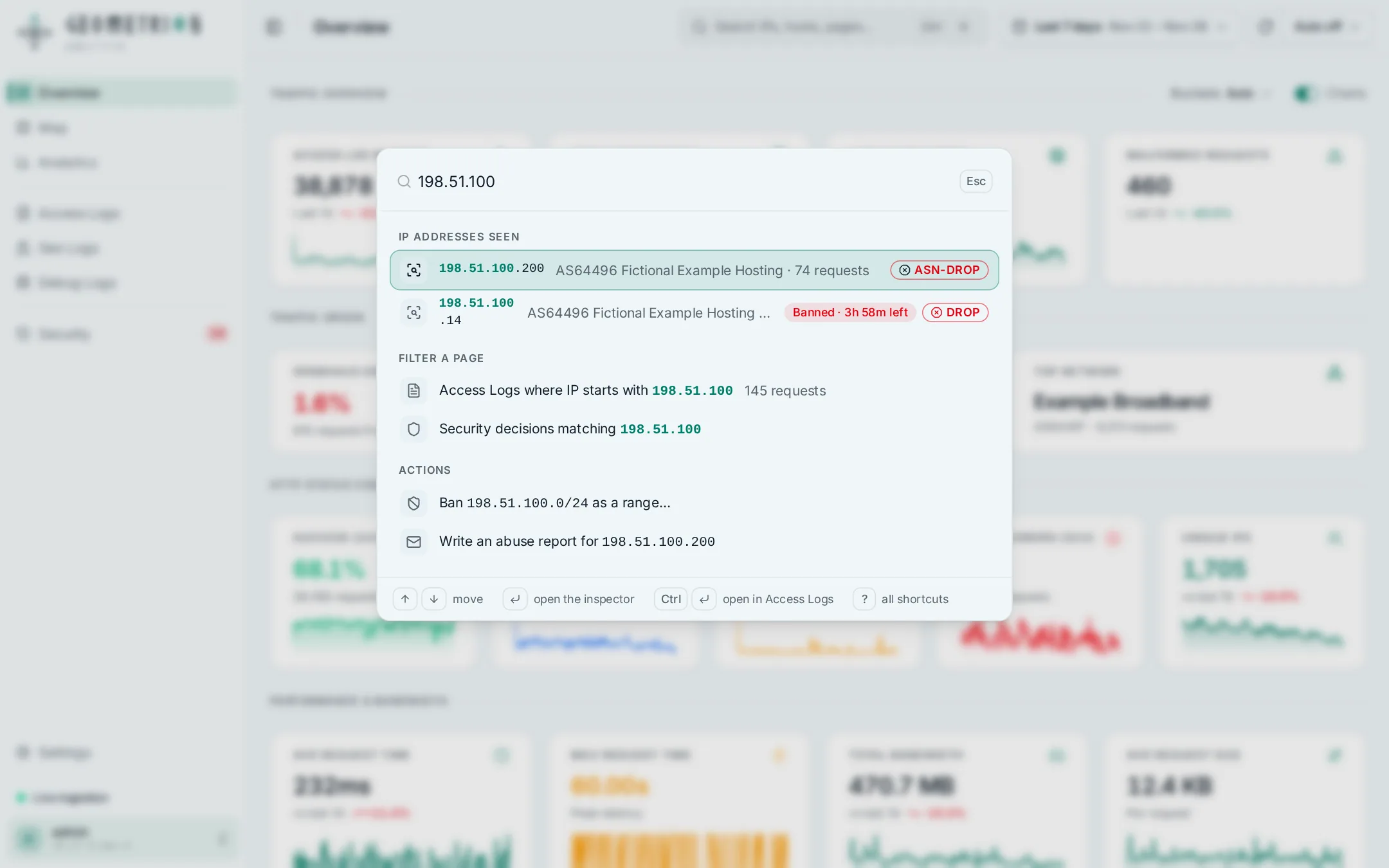
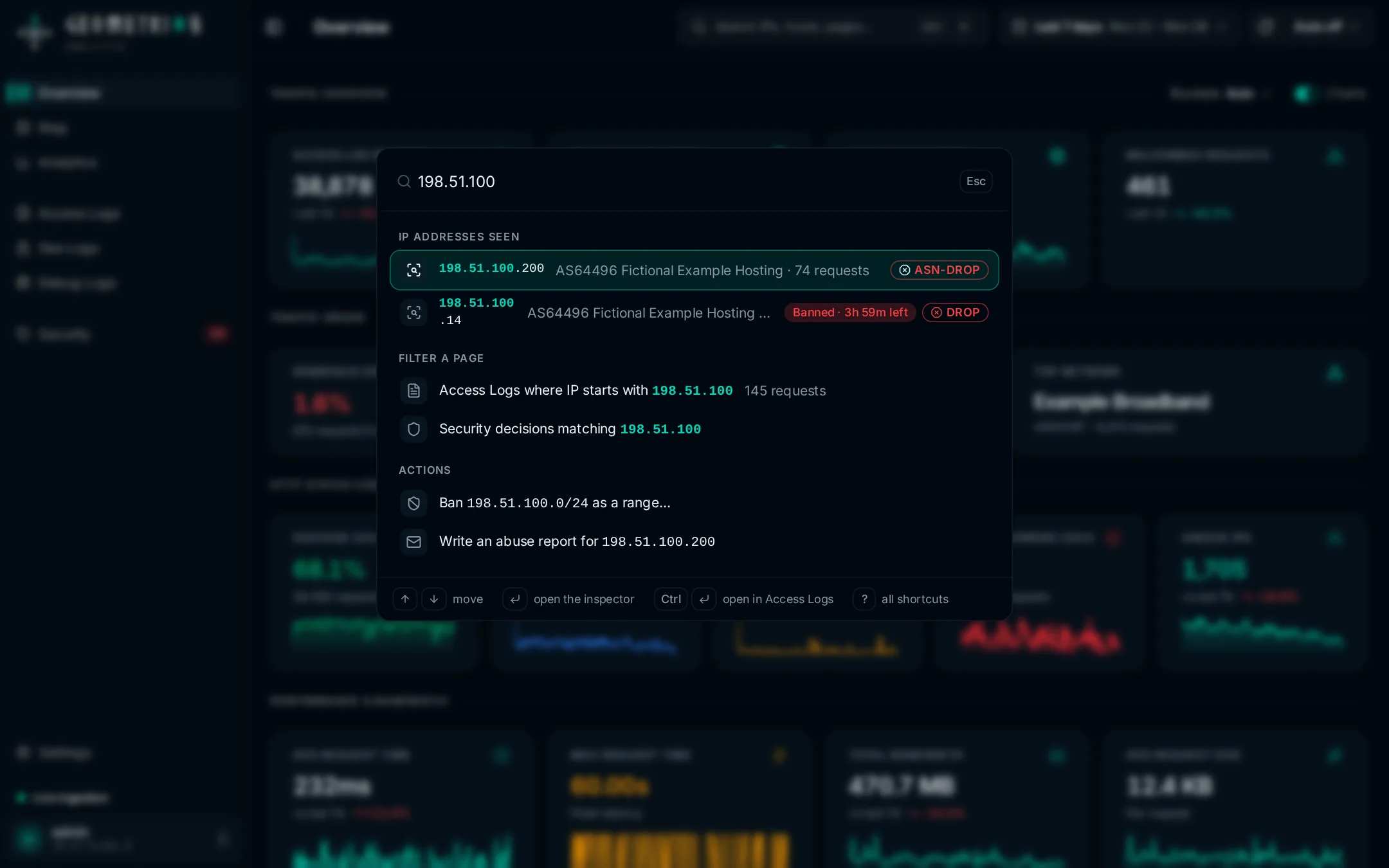
Type an IP address or its start to search all traffic GeoMetrikks has kept, not only the selected time range. The search starts once the first part is complete and followed by its separator: 45. or 198.51 for IPv4, 2001: for IPv6. A single number such as 1 doesn't search. Partial parts match too: 203.0.11 finds 203.0.11.x and 203.0.110.x to 203.0.119.x. An IPv6 address written with :: matches only that address.
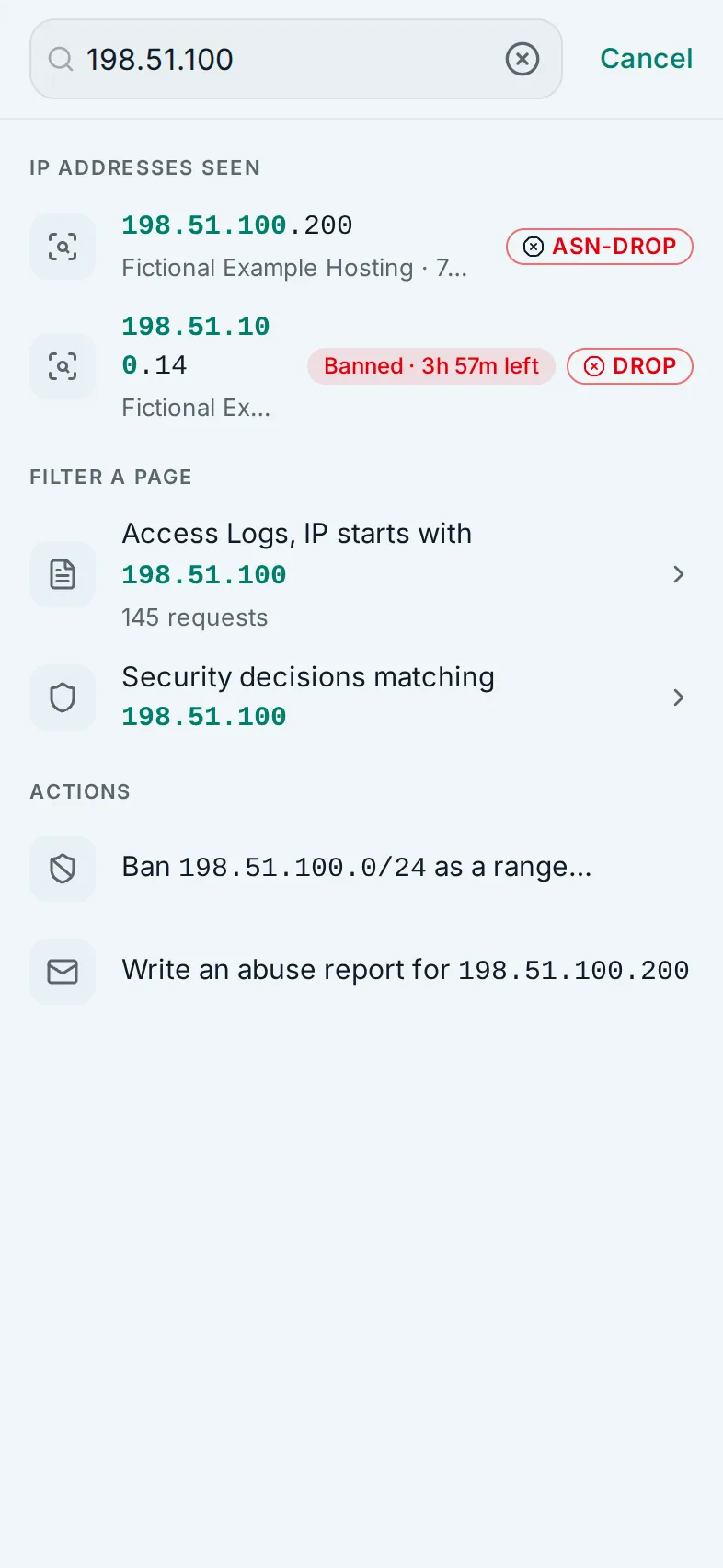
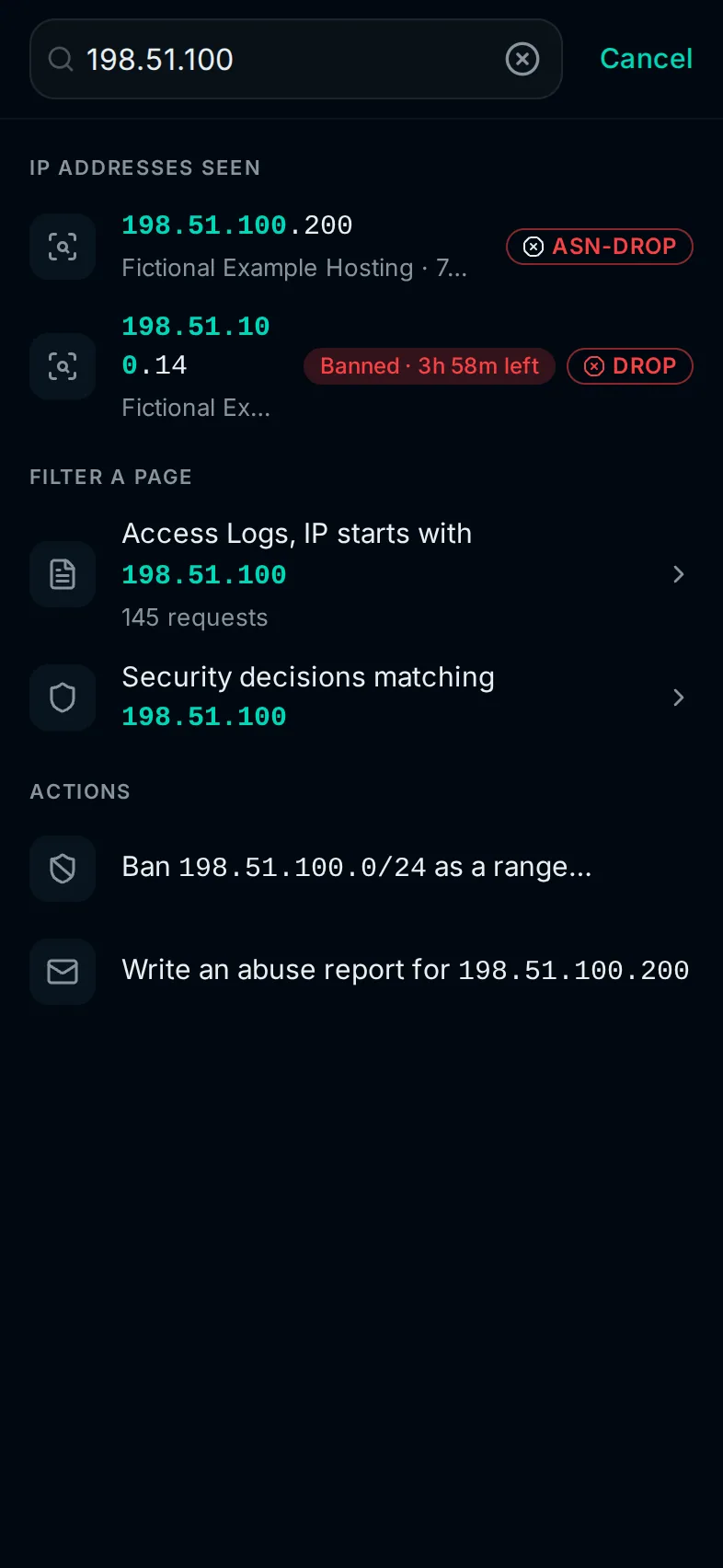
- IP addresses seen lists up to 8 matches, busiest first, each with its AS number, name and request count. Rows also show a red Banned badge with time left when CrowdSec has an active decision, and a DROP badge when the address or its network is on Spamhaus DROP or ASN-DROP. Press
Enteron an address to open it in the IP inspector, orCtrl+Enter(Cmd+Enteron a Mac) to open Access Logs filtered to it. The footer shows these keys. - Filter a page offers "Access Logs where IP starts with …" to open Access Logs filtered to every address starting with the text. The count shown covers all kept data, while the page opens on the selected time range. With CrowdSec set up, a whole address or whole parts such as
198.51also add "Security decisions matching …", which opens the Security decisions tab searched for that text. - Actions adds "Ban 198.51.0.0/16 as a range…" for whole parts, or "Ban …" for a whole address, when CrowdSec has write access. Both open the ban dialog filled in. "Write an abuse report for …" opens an abuse report for the typed address or the busiest match.
Name search
Type 2 or more characters to search countries, cities, hosts, server names and networks by name. If the text is an IP address or the start of one, IP search runs instead. Name search matches anywhere in the name, ignoring case and accents, so malmo finds Malmö. A country also matches its exact two-letter code, so no finds Norway. A network matches its AS number from the first digits, with or without AS, so 2494 or AS2494 finds AS24940 Hetzner.
Results appear in order under Countries, Cities, Hosts, Servers and Networks, up to 4 per group, busiest first by request count. Each row shows its kind and request count, such as "Country · NO · 38,680 requests" or "Network · AS2119 · 23,986 requests". A city row also names its country, as in "City · Sweden · 15 requests", so Paris in France and Paris in the United States appear as separate rows. Counts cover all kept data, not only the selected time range, and include muted IPs. Country and city counts cover requests GeoIP placed. Counts can trail new traffic by up to five minutes. The first name search after the app starts can take a moment while the server adds up its totals, and shows "Searching countries, hosts and networks…" meanwhile.
Pick a match with Enter or a click to turn it into a chip in the search field. The list switches to "Filter a page by country", or the picked kind, with one row per page, such as Analytics with "country is Norway" beside it. Type to filter that page list, and press Enter to open the page on the selected time range with that filter set. Access Logs opens on its History tab. A city brings its country along as a second filter when GeoIP gave one. Press Backspace in the empty field, press Esc or click the chip's × button to remove the chip and return to the search. Press Esc again to close the palette.
| Kind | Pages |
|---|---|
| Country | Analytics, Access Logs, Geo Logs, Map |
| City | Analytics, Access Logs, Geo Logs, Map |
| Host | Analytics, Access Logs |
| Server | Access Logs, Geo Logs, Map |
| Network | Analytics, Access Logs, Geo Logs |
On a phone
A round search button sits in the header on every page except the map, which has no header on a phone. It opens the palette as a full-screen sheet. Cancel closes it.
- Opened empty, the sheet lists Recently inspected, then Actions, then Go to. Go to lists only the pages under More in the tab bar, since the tab bar holds the rest. Typing still finds every page, Map included.
- "Change the time range…" opens the time range drawer.
- Name search shows the same groups in the "IP, host, country or action" sheet, with the kind and count on a second line and a picked match as a chip in the search field.
When shortcuts don't fire
Shortcuts never fire while you type in a field, or while a dialog, menu or drawer has focus. Ctrl+K (Cmd+K on a Mac) still works while you type in a field. Keys held with Ctrl, Cmd or Alt are left to the browser, except Ctrl+K and Ctrl+B (Cmd+K and Cmd+B on a Mac).
Cheat sheet
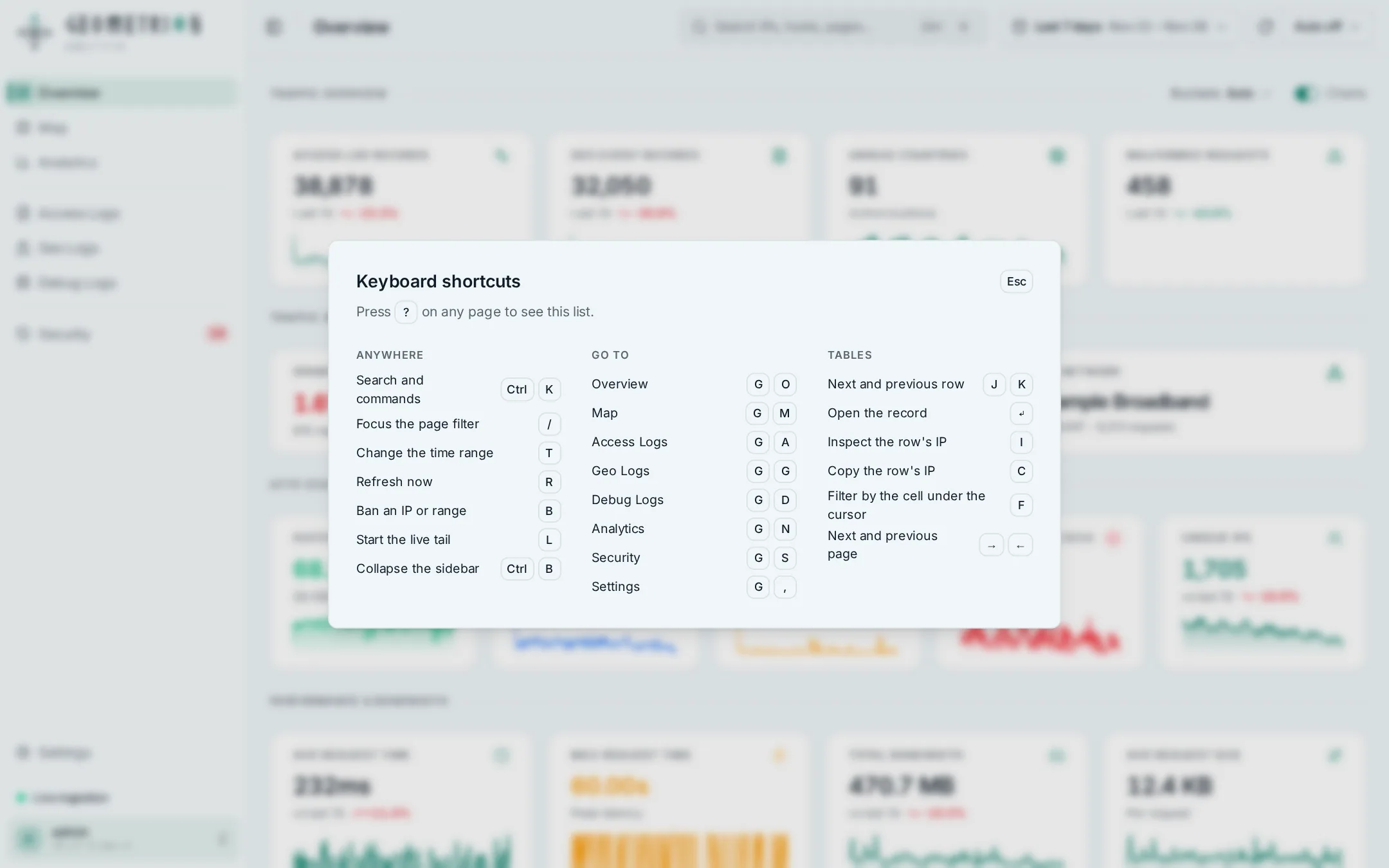
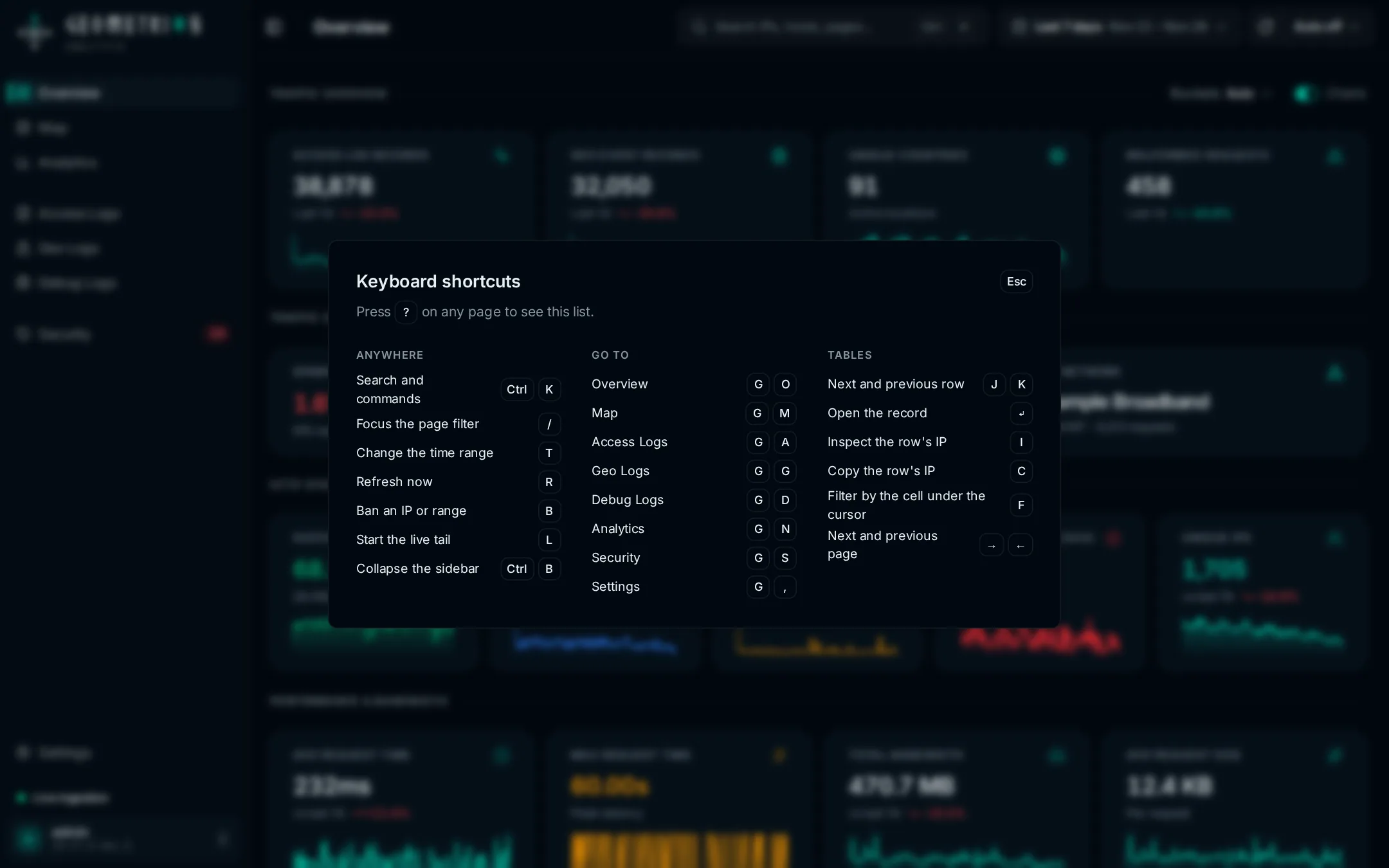
Press ?, or open the user menu at the bottom of the sidebar and pick Keyboard shortcuts. The cheat sheet lists Anywhere, Go to and Tables, and leaves out B when CrowdSec write access is not set up.
Turning single-key shortcuts off
Settings > Appearance > Keyboard shortcuts has a Single-key shortcuts switch. It is on by default and stored per browser. Turn it off if the keys clash with a browser extension such as Vimium. Turning it off disables every single-key shortcut (letters, /, ? and arrows), while Ctrl+K and Ctrl+B (Cmd+K and Cmd+B on a Mac) keep working. With the switch off, the cheat sheet still opens from the user menu and says the keys are off.